mise.toml language support
Syntax Highlighting for TOML
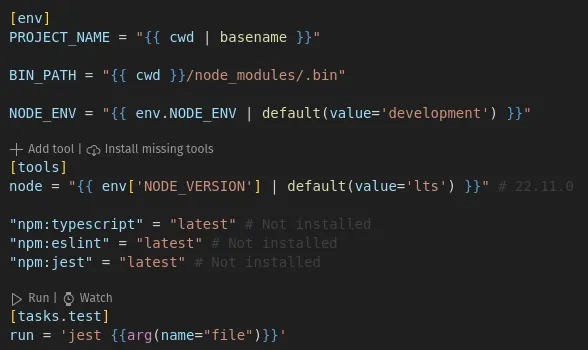
Section titled “Syntax Highlighting for TOML”This extension provides basic syntax highlighting for mise.toml/mise.lock files.
For the best experience with syntax highlighting and autocompletion in mise.toml files, you should install one of these TOML extensions:
The extension will notify you on startup if neither is installed.
mise-vscode associates the mise JSON schema
with all mise configuration files for these extensions, including environment and
platform-specific ones such as mise.local.toml, mise.linux.toml, or
mise/config.macos-arm64.toml (see auto_env),
so autocompletion and validation work in all of them.
mise-vscode provides syntax highlighting for tera used for
templating in mise.toml files
tasks_config.includes
Section titled “tasks_config.includes”If you use tasks_config.includes to include some additional tasks files, add the following at the top of your file to get auto-completion and validation from tombi or even-better-toml.
#:schema https://mise.jdx.dev/schema/mise-task.json
[build]run = "echo Hello, World!"
Autocompletion for tools
Section titled “Autocompletion for tools”Tool names and versions are autocompleted in the tools section of a mise.toml file.
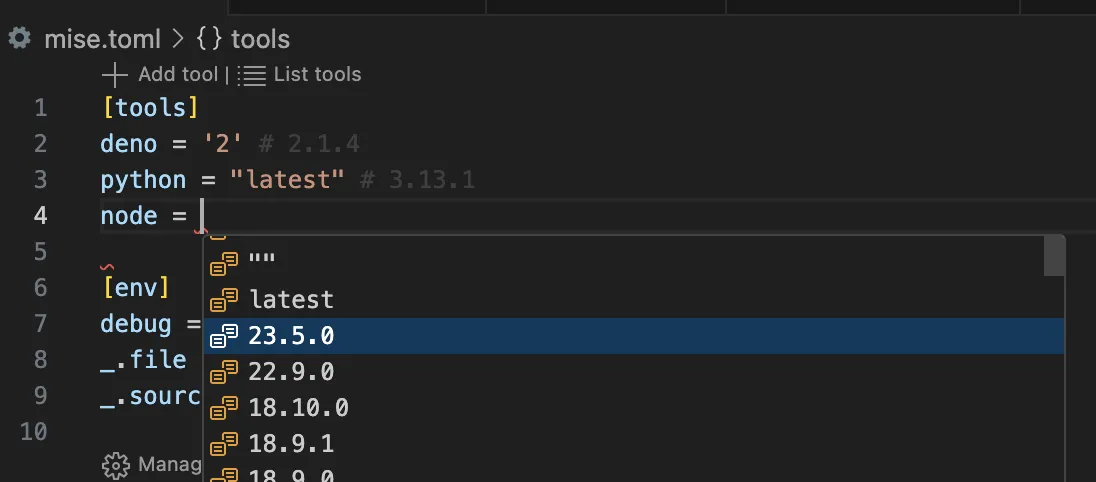
In .tool-versions files, backend prefixes (core:, npm:, cargo:, …) are
also autocompleted, and typing a prefix such as core: suggests the registry
tools of that backend (e.g. core:node).
Tool stubs
Section titled “Tool stubs”Tool stubs are executable
files (usually committed under bin/) whose body is TOML under a
#!/usr/bin/env -S mise tool-stub shebang:
#!/usr/bin/env -S mise tool-stub
version = "2.96.0"tool = "github:cli/cli"bin = "bin/gh"
The extension detects the shebang and opens stub files as TOML, so they get
syntax highlighting even though they have no .toml extension.
Autocompletion for tasks
Section titled “Autocompletion for tasks”Code completion is provided for depends = ["task_name"], depends_post = ["task_name"], wait_for = ["task_name"].
extends = "template_name" completes the
task templates declared in the file
being edited and in its parent config files. See the
task templates section of the tasks
reference for the hover, go-to-definition, and find-references support.
Task arguments (usage spec)
Section titled “Task arguments (usage spec)”Task arguments are declared with the
usage field of a task,
using the usage spec. The extension provides:
- Syntax highlighting of
usage = '''...'''blocks (KDL) - Context-aware autocompletion: directives (
arg,flag,complete) at the start of a line, the attributes valid for that directive after it (help,default,choicesblocks,count,negate, …), without repeating attributes that are already set - Hover documentation for directives and attributes
$usage_*variable completion: typing$in a multilinerunblock suggests theusage_*environment variables derived from the args and flags of that task
[tasks.deploy]usage = '''arg "<environment>" help="Target environment" { choices "dev" "staging" "prod"}flag "-v --verbose" help="Enable verbose output"'''run = '''echo "Deploying to ${usage_environment?}"'''File tasks
Section titled “File tasks”The same support is available in shell file tasks:
#USAGElines get usage spec syntax highlighting, autocompletion, and hover#MISElines are highlighted as TOML, with autocompletion and hover for the task configuration keys (description,alias,depends,sources, …)- Typing
$in the script body suggests theusage_*variables from the#USAGElines
Code lens features
Section titled “Code lens features”This extension adds the following code lens features:
- Each task has a
runandwatchcode lens that will run the task - A
add toolcode lens that to automatically add a tool to amise.tomlfile
Code navigation
Section titled “Code navigation”- Cmd/Ctrl+Click on an included file will open that file (example:
include = ["tasks.toml"]) - Cmd/Ctrl+Click on
extends = "template_name"opens the[task_templates.template_name]declaration; Find all references on a declaration lists every task extending it
Syntax highlighting for shebang
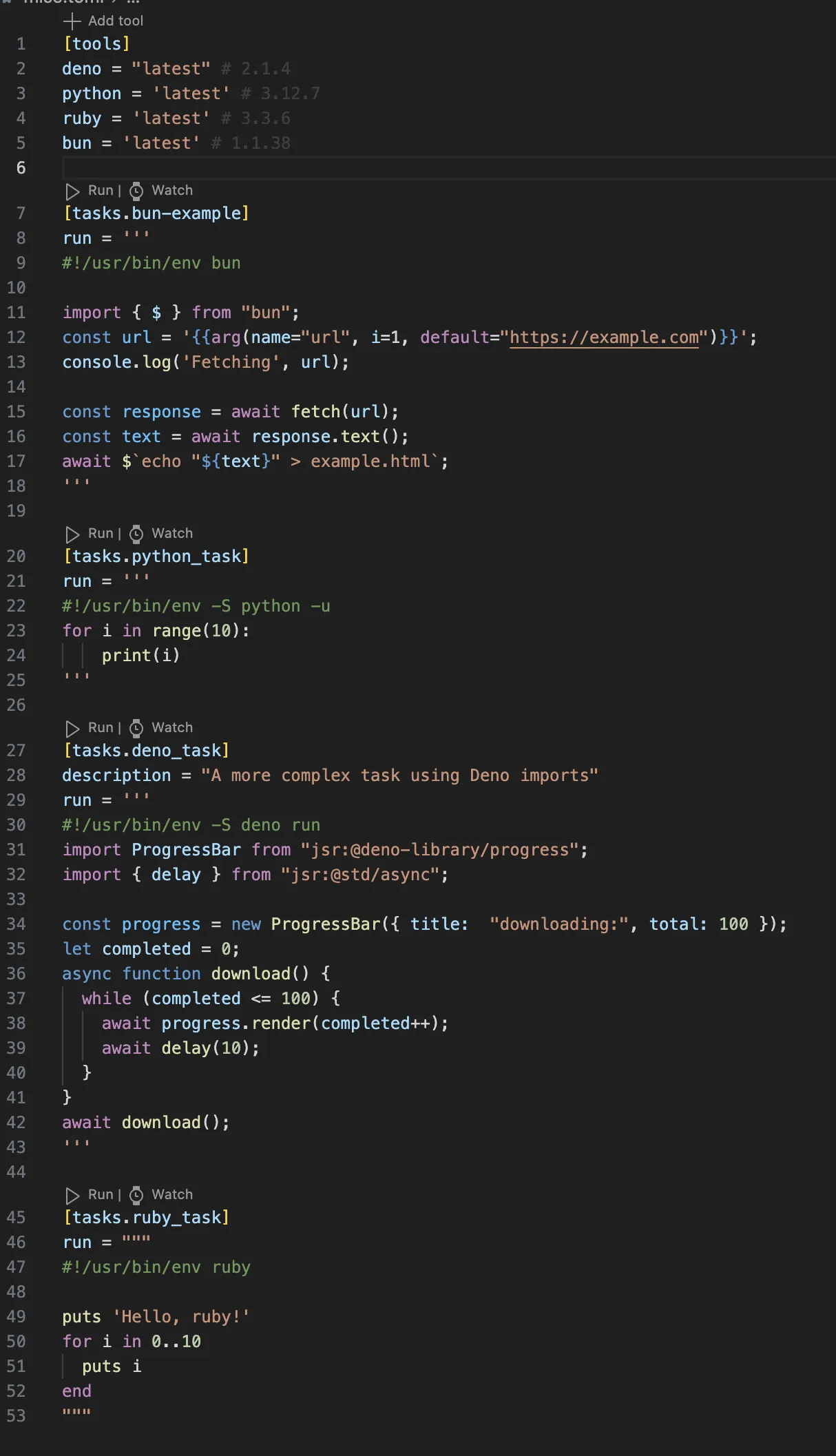
Section titled “Syntax highlighting for shebang”If you are using multi-lines task script with a shebang, syntax highlighting will be applied to the script.
The following languages are supported: Python, Node.js, Deno, Bun, Deno, Ruby, Bash, and Shell.
While a config file is being edited
Section titled “While a config file is being edited”With auto save enabled, a config file is written while you are still typing it. mise cannot read a file that does not parse, so every command fails until it does.
Instead of clearing the panels, the extension keeps showing the last state it could read. The status bar shows a warning while this is the case, and config files that do not parse are marked in the activity bar.
If a command never succeeded, its error is shown as usual. Opening a project with a config file that is already broken shows errors.
Running or watching a task is refused while a config file does not parse. You get a message pointing at the file, instead of a mise error about a task that does not exist.
The kept state is dropped when:
- the file parses again
- you save it yourself with
Cmd/Ctrl+S - you reload the configuration from the activity bar, the status bar or the command palette
Reloads the extension does on its own, for example after running a task, do not drop it. There is no timeout: the state is kept for as long as the file does not parse.