Tasks
Finding tasks
Section titled “Finding tasks”Here are a few ways to find tasks in your project:
Using the mise activity bar
Section titled “Using the mise activity bar”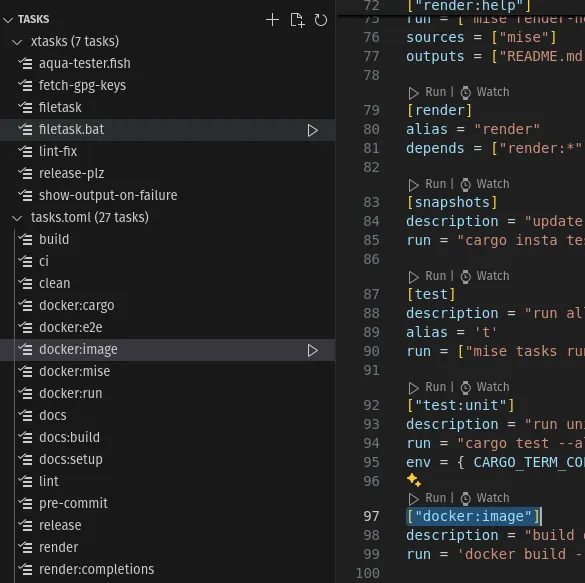
Click on a task to navigate to the file where the task is defined.
Using the command palette
Section titled “Using the command palette”Using the command palette: cmd|ctrl+shift+p and search for
Mise: Open task definition.
While a config file does not parse, the task list and the code lens actions keep showing the previous tasks. See While a config file is being edited.
Running a task
Section titled “Running a task”You have several ways to run a task with the extension:
Using the run task code lens action
Section titled “Using the run task code lens action”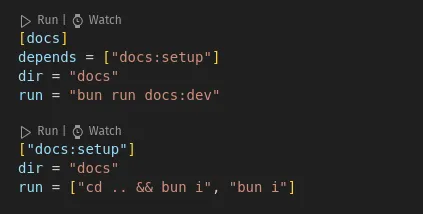
Click on the run button to run the task. If some option/arguments are required, you will be prompted to enter them.
Task arguments
Section titled “Task arguments”If the task declares arguments with the
usage field (or #USAGE
comments in file tasks), the extension prompts for them before running:
- arguments with
choicesare picked from a list defaultvalues are pre-filled- the
helptext of each arg/flag is shown in the prompt - optional arguments can be skipped
See mise.toml language support for the editor support (autocompletion, hover, syntax highlighting) of the usage spec.
Using the mise activity bar
Section titled “Using the mise activity bar”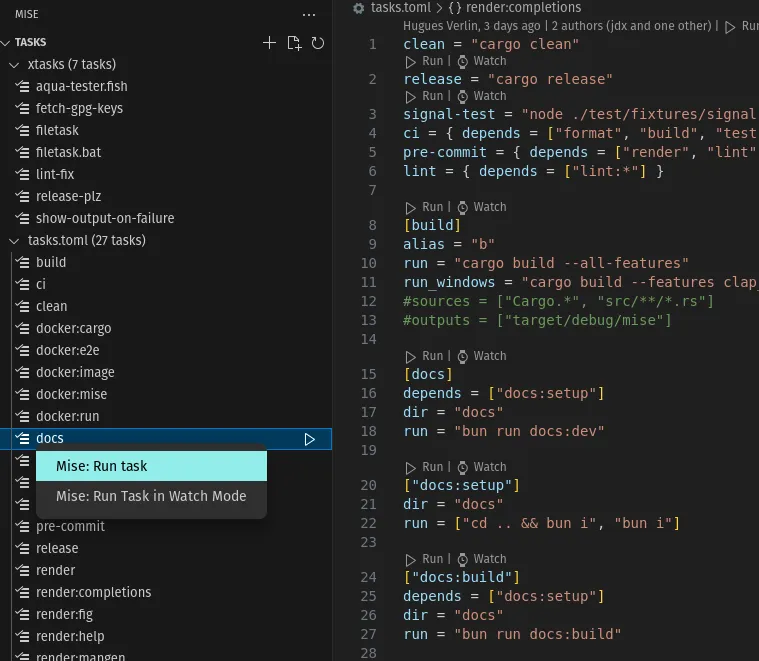
Click on the run action, or use right-click -> run task
Using the command palette
Section titled “Using the command palette”Using the command palette: cmd|ctrl+shift+p, search for Mise: run task.
Press enter.

VS Code task integration
Section titled “VS Code task integration”This extension lets
VS Code tasks use mise
tasks. You can use mise tasks in your launch.json file. This allows you to
create your own shortcuts to run tasks
{ "version": "2.0.0", "tasks": [ { "type": "mise", "task": "build-my-app", "label": "Build my app", "watch": true } ]}Supported parameters for mise tasks
task: The mise task to executewatch: Re-run the task when files changemiseEnv: The mise env to use (optional, will use the default miseEnv if not provided)glob: Glob pattern to watch for changes. Defaults to sources from the tasksrunArgs: Arguments to pass to the task. Not used when watch is truewatchexecArgs: Arguments to pass towatchexec. (example:--clear) | usewatchexec --helpfor more information
Creating a task
Section titled “Creating a task”Using the activity bar
Section titled “Using the activity bar”You can create a file task or a toml task directly from the activity bar
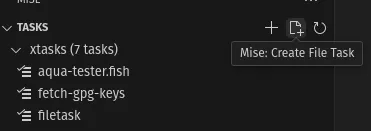
Using the command palette
Section titled “Using the command palette”Using the command palette: cmd|ctrl+shift+p, search for
Mise: Create File task or Mise: Create Toml Task
New file tasks are created with a working example of
task arguments (#USAGE
flag, argument with a default value, custom completion, and the corresponding
$usage_* variables in the script).
Using snippets
Section titled “Using snippets”Type mise-task in a mise configuration file to get snippets for the different
shapes a task can take: mise-task, mise-task-array, mise-task-script,
mise-task-usage, mise-task-template, mise-task-full, and one per language
(mise-task-node, mise-task-python, mise-task-uv, mise-task-deno,
mise-task-bun, mise-task-ruby). In a file task, mise-task inserts a
#MISE configuration block and mise-task-usage a #USAGE argument block.
The snippets are only suggested in the files mise loads, which are the
configuration files and the scripts
in a task directory, and only
where a task can be inserted: at the start of a line, outside of strings,
arrays and comments. Set mise.enableSnippets to false to turn them off.
Task dependencies
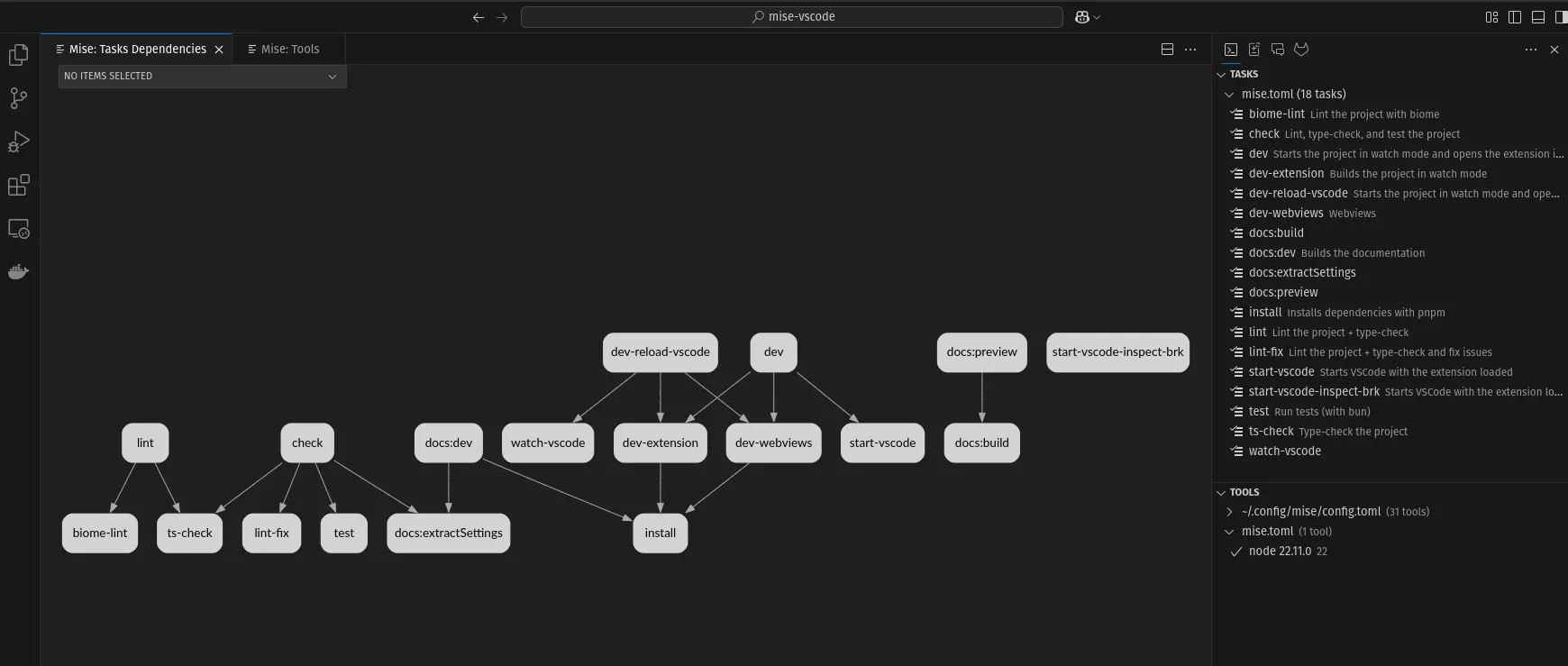
Section titled “Task dependencies”You can visualize the dependencies of a task by using the Mise: Visualize Tasks Dependencies command.
Task output cache
Section titled “Task output cache”Tasks that opt into the experimental
task output cache
(cache = { enabled = true }) get a Cache code lens next to their Run
action, showing the size of the stored entries. Clicking it offers to explain
the cache key, run the task without its cache, or clear its entries.
The task hover also reports the state of the cache: how many entries are stored, whether the next run hits or misses the cache, and when the cache was last used.
The hit or miss is resolved by asking mise for the cache key the task would use
right now. Computing that key runs the command_inputs of the task, so tasks
declaring any are never predicted — for those, the hover reports the latest
stored entry instead, and Mise: Explain task cache key gives the full answer
on demand.
The same actions are available from the command palette and from the task context menu in the activity bar:
Mise: Explain task cache key(mise run --dry-run --task-cache-explain) — shows what feeds the cache key without running the taskMise: Run task without its output cache(mise run --task-cache off)Mise: Clear task output cache(mise cache clear --task) — only offers the tasks that have stored entries
This requires mise 2026.8.1 or later. Nothing is shown for tasks that do not
enable the cache.
Task templates
Section titled “Task templates”Task templates are reusable task
definitions declared in a [task_templates.<name>] section. A task picks one up
with extends = "<name>", and can override any of its fields:
[task_templates."python:build"]description = "Build a python package"run = "uv build"tools = { python = "3.12", uv = "latest" }
[tasks.build]extends = "python:build"run = "uv build --wheel" # overrides the template command
The extension resolves templates the way mise does, from the config file declaring the task and from its parent config files, which makes them particularly useful in a monorepo. It provides:
- Autocompletion of the template names in
extends = "<name>", showing the declared fields and which config file each template comes from - Hover on
extends = "<name>", showing the template it resolves to, and on a[task_templates.<name>]declaration, showing how many tasks extend it - Go to definition from
extends = "<name>"to the[task_templates.<name>]entry, in the same file or in a parent config file - Find references from a template declaration to every task extending it, anywhere in the workspace
- Task templates in the outline view, and a
mise-task-templatesnippet
Task hovers show the template a task extends. The fields shown for the task itself are the ones mise resolved, i.e. after the template has been merged in.
Monorepo tasks
Section titled “Monorepo tasks”The extension supports
mise monorepo tasks (monorepo_root = true).
This requires mise 2025.10.3 or later. package.json script tasks and the
project graph additionally require a recent mise version and the
experimental setting
(mise settings experimental=true, or experimental = true under [settings]
in the monorepo root mise.toml).
Tasks are shown with their fully qualified names (//projects/frontend:build)
and can be run from the activity bar, code lenses, the command palette, and the
VS Code tasks API. In the activity bar, tasks are grouped by their config file,
with each project’s files listed together.
Navigation understands all the ways tasks can reference each other:
depends = ["build"]— a task of the same projectdepends = [":build"]— explicit same-project referencedepends = ["//projects/frontend:build"]— fully qualified referencedepends = ["//projects/...:build"],depends = ["//projects/frontend:*"]— wildcards. Hovering shows all the matching tasks, and go-to-definition opens each of them.depends = ["^build"]— thebuildtasks of the projects the current project depends on, following the workspace projects graph- task aliases (
alias = "fmt"), including in other projects
Task templates declared in the monorepo root config are
resolved for the tasks of every project extending them.
Dependencies added by [monorepo.task_defaults] in the root config are shown
in the task tooltips and included when searching for task references.
package.json scripts
Section titled “package.json scripts”If the monorepo defines a Node workspace (workspaces in the root
package.json, or pnpm-workspace.yaml), mise exposes each package’s scripts
as tasks (e.g. node:frontend#test, also addressable as
//projects/frontend:test). These tasks appear in the activity bar under their
package.json file and can be run like any other task. Go-to-definition on a
reference to such a task jumps to the script in the package.json file.
Since mise 2026.8.2, this inference is opt-in per workspace provider: list
node in
task.auto_infer
in the monorepo root mise.toml, otherwise no script task shows up.
[settings]experimental = truetask.auto_infer = ["node"]node is currently the only provider that infers tasks. The other workspace
providers (cargo, go, uv) contribute projects and dependency edges to the
workspace projects graph, which needs no opt-in.
If a mise task in the project’s mise.toml has the same name as a script, the
toml task takes precedence and keeps the script name as an alias.
With a turbo.json file, mise (2026.8.0+) imports the supported metadata of
each script (dependsOn, inputs, outputs, cache). Imported dependencies
show up in task tooltips and are included when searching for task references.
Workspace projects graph
Section titled “Workspace projects graph”Mise: Visualize task dependencies (also available from the mise status bar
menu, under Task dependencies) shows the workspace project graph inferred by
mise from ecosystem manifests, in addition to the task dependency graph.
With mise 2026.8.0 or later, projects and their dependency edges are
inferred from Node (package.json workspaces or pnpm-workspace.yaml), Cargo,
uv, and Go workspace manifests, without needing the underlying toolchains
installed. Go dependency edges are not inferred from go.mod; they can be
declared with [monorepo.projects] in the monorepo root config:
[monorepo.projects."go:example.com/fixture/gateway"]depends = ["go:example.com/fixture/auth"]Tools and environment variables
Section titled “Tools and environment variables”Tools and environment variables declared in a monorepo project config (e.g.
projects/frontend/mise.toml) are shown in the Tools and Environment variables
views, grouped under their config file. Note that the environment injected into
the VS Code terminal and the automatic SDK configuration still use the
workspace root configuration.
Resolving them spawns one mise process per project when the configuration is
loaded. In large monorepos, you can disable this with the
mise.resolveMonorepoProjectConfigs setting.